
Send automatic DMs from comments
We guide you through setting up automatic DMs, from comment and keyword conditions to reply, activation, pause, and delivery confirmation.
Open this featureBefore you start
The social account used for automation must be connected to Mirr. The account picker shows Instagram, Facebook, and other supported accounts that can use DM automation.
A published or scheduled post is required when a post comment is the trigger. A rule linked to a scheduled post starts working after that post is published.
Depending on your plan and workspace permissions, application to the entire account, watermark removal, and actual delivery may vary. Please check the free plan/free trial information at the top of the screen first.
Automated replies and DMs are sent from your connected social account to real people. Excessive sending can lead to platform restrictions or account penalties, so start with a narrow scope and a conservative resend policy.
1. Open a new automation
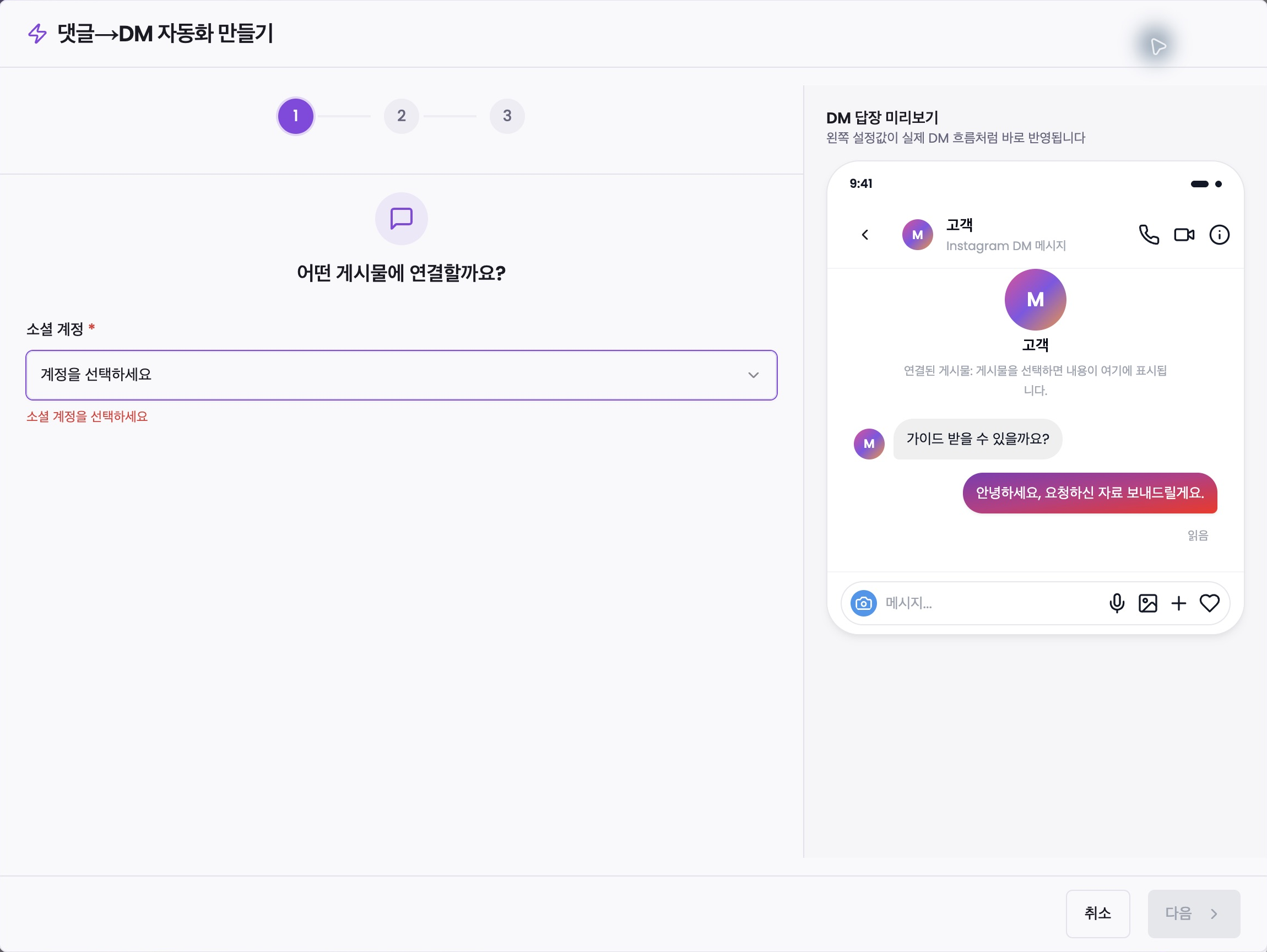
Open ‘자동 DM’ (Automatic DM) in the left menu and click ‘자동화 만들기’ (Create Automation) to open the ‘댓글→DM 자동화 만들기’ (Comment → Create DM Automation) window. The basic flow is three steps: ‘게시물 선택 → 키워드 설정 → DM 작성’ (select post → set keywords → create DM), and when you turn on messaging by followers, the step ‘팔로워별 메시지’ (messaging by followers) is added at the end.
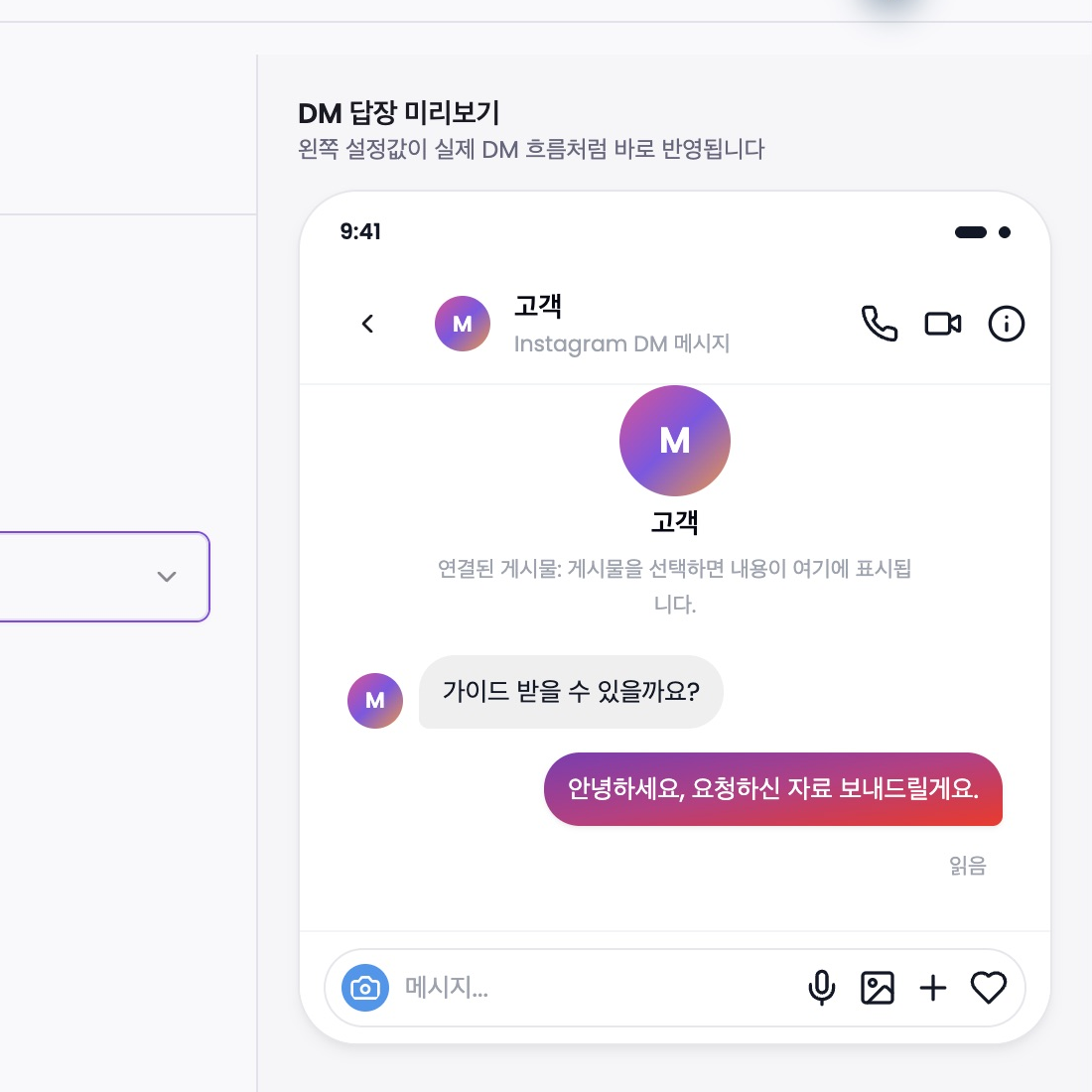
‘DM 답장 미리보기’ (DM Reply Preview) on the right directly reflects the settings on the left. View branching by account, post, public comment reply, DM body, and follower like an actual incoming flow, but the preview itself doesn't send a message.
2. Set up your account and starting conditions
Under ‘소셜 계정’ (Social Accounts), select the account you want to run the automation on. For your Facebook account, you can choose between ‘게시물 댓글’ (post comment) and ‘Messenger 메시지’ (Messenger message) starting condition. If you select a Messenger message, you will move to the next step without selecting the post.
For Comment Automation, select ‘이 게시물 하나’ (this one post) or ‘계정의 모든 게시물’ (all posts in your account). Single Post selects the post from the list that will receive comments. Account-wide rules apply to past posts, reels, upcoming posts, and posts not posted with Mirr, and are available on Launch or higher plans.
If you have both a global rule and an individual post rule on the same account, the individual rule will check comments first on that post. Only comments that do not match an individual rule will be processed by the overall rule.
3. Narrow down your keywords and audience
In the ‘어떤 댓글에 보낼까요?’ (Which comment should I send to?) step, enter your keyword and press Enter or the Add button. There is a maximum of 20 keywords, and the same phrase is not added repeatedly. Turning on ‘모든 댓글에 반응’ (React to all comments) will empty your keyword list and target all new comments, so double-check your post scope and sending volume to avoid sending them to unintended people.
If you turn on ‘이 단어만 정확히 있을 때’ (Only this word exactly) in ‘고급 설정’ (Advanced settings), the comment will only react if the entire comment is exactly the same as the keyword. If you turn it off, it will respond when keywords are included anywhere in the comment.
‘같은 사람에게 다시 보내기’ (resend to same person) chooses among ‘최초 1회’ (first time), ‘24시간마다’ (every 24 hours), and ‘댓글마다’ (per comment). The single post rule uses once by default, and the account-wide rule uses every 24 hours. If you turn on ‘광고에 달린 댓글에도 보내기’ (Send to comments on advertisements), the scope will be expanded to include advertisement comments.
4. Write public replies and DMs
Enter the actual DM body in ‘어떤 메시지를 보낼까요?’ (What message should I send?) Text DMs can be up to 1,000 characters long. If you turn on ‘여러 문구 중 선택해서 보내기’ (select and send from multiple phrases), you can add up to 9 phrases in addition to the basic phrase and select one phrase to send. Include the necessary links and key information in every copy.
For Instagram and Facebook comment automation, you can select ‘댓글에 답글 달기’ (Reply to comments). This reply will be visible to the post before the DM and can be up to 500 characters long. If you enter multiple replies, one of up to 10 will be selected. This is a public domain, so please do not include any personal information or DM-only content.
If there is a URL in the body, ‘링크를 버튼으로 바꾸기’ (Convert link to button) instructions may appear. If you turn on ‘리치 카드 사용’ (Use Rich Cards), cards with titles, subtitles, images, and buttons will be sent instead of text bodies. Card titles and subtitles can each be up to 80 characters long, button text can be up to 20 characters long, and web links must start with http:// or https://.
5. Divide according to follower status
For your Instagram account, you can turn on ‘팔로워별로 다르게 보내기’ (Send different messages to different followers). Users first receive instructions to get started, press a button, and then receive messages for followers or non-followers depending on whether they are a confirmed follower or not.
When you turn this feature on, additional steps include setting the launch card title, subtitle, optional image, button text, and the response to your followers and message to non-followers. If the start card title, button text, and non-follower message are empty, it cannot be activated.
6. Final review before activation
In the preview on the right, check the account and post, comment text, public reply, DM body, button link, and follower/non-follower branch in that order. For the free plan, automatic DMs are not sent even if the rules are turned on, and for the free trial, sending will stop at the end of the trial period. Please make your decision based on the current plan instructions displayed on the screen.
The last button is not ‘저장’ (Save) or ‘초안 만들기’ (Create Draft), but ‘활성화’ (Activate). When you press it, the rule is created in an active state and you can then process actual comments and messages that meet the conditions.
7. Pause and resume
Turn off the switch in the automation list to change the rule to ‘일시중지’ (Paused) and stop it from handling new matches. Pausing does not recall public replies or DMs that were already sent.
Turn the switch back on to return the rule to ‘사용 중’ (Active). If an account-wide rule also exists, activating a post-specific rule may show a confirmation that the post-specific rule takes priority. Use ‘수정’ (Edit) to change a rule or ‘삭제’ (Delete) to remove it; deletion opens a confirmation dialog.
8. Check delivery results
In the ‘발송 기록’ (Delivery History) tab at the top, you can view the execution results by dividing them into ‘전체’ (All), ‘발송됨’ (Delivered), ‘대기’ (Waiting), and ‘실패’ (Failed) and search by user name and comment contents. Items waiting for follow confirmation or receiving data may be displayed as waiting.
If a rule is in use but is not sent, first check whether your current plan supports sending, connected account status, post/keyword range, and resend restrictions. You can only send private replies to Facebook comments once per comment within 7 days of writing the comment, and you can only send additional messages after the person replies in Messenger.
When a problem arises
The Next button is disabled: Step 1 requires a social account plus either a post or the account-wide scope. Step 2 requires at least one keyword or ‘모든 댓글에 반응’ (Respond to all comments). The final step requires a valid text DM or rich card.
The post is missing: Confirm that it is published or scheduled, then click ‘새로고침’ (Refresh). If Instagram posts still cannot be loaded, reconnect the account because its access token may have expired.
A matching comment did not trigger: Check whether ‘이 단어만 정확히 있을 때’ (Match this word exactly) is enabled, then verify spelling, spacing, post scope, and resend limits.
Too many people received the message: Pause the automation, then narrow ‘모든 댓글에 반응’ (Respond to all comments), account-wide scope, ad comments, and the ‘댓글마다’ (Every comment) resend option.
The link button will not save: Enter button text and make sure the URL begins with http:// or https://.
The delivery status is Waiting: The flow may be waiting for a follow-gate button click or another action from the recipient. Check the status in ‘발송 기록’ (Delivery history).
The rule is active but not sending: Check whether the current plan supports automatic DM delivery. The rule can remain stored while plan restrictions block sending.
Is DM automation not working? Check these first
No messages sent?
Check that the rule is active, the account and post are correct, and the keyword and exact-match setting fit the comment. Test with a new matching comment from another account after activation.
Check plan eligibility and trial expiry.
Only certain recipients affected?
Read the delivery status and error first, then check the repeat-send policy. Ask the recipient to check Instagram message requests, hidden requests and receiving settings.
Mirr cannot override blocks or recipient restrictions.
Stopped at follower verification?
Check whether the recipient pressed the opening button and whether both follower responses are configured. A public comment reply does not prove DM delivery; check the DM record separately.
Connection error or unclear cause?
Review the connection and delivery error. Reconnect from Social Accounts if permissions or authorization have expired.
Check other connected automation services without blindly deleting accounts or disconnecting services. Send support the post URL, comment time, rule settings and error screenshot; never passwords or access tokens.
Stopped after using another automation tool?
Check the correct Facebook Page on desktop: Instagram conversation routing → default app, and Advanced messaging → connected apps. Also check Meta Business Suite conversation routing for the same Instagram account.
Another app may receive events. Choose the intended handler, adjust routing and test a new comment.
Menus depend on connection type; the connected app name may differ from Mirr. [Facebook linked accounts](https://www.facebook.com/settings/?
tab=linked_profiles) · Instagram conversation routing · [Advanced messaging](https://www.facebook.com/settings?
tab=advanced_messaging) · Meta Business Suite conversation routing
Is message access disabled?
In Instagram, check Settings and activity → Messages and story replies → Message requests → Connected tools → Allow access to messages. Names vary by version.
Check professional account status, active app permissions, Account Status restrictions and Accounts Center → Your activity off Meta technologies → Manage future activity. Review Instagram’s explanation before changing settings.
Only one post affected?
Age, country, sensitive-content or account restrictions may prevent external app access. Open the post while logged out and check for restriction notices; a login prompt alone is inconclusive.
Check Account Status and the selected post. Scheduled-post rules apply after publishing: confirm the actual published post matches the rule.
Follower button fails or delivery is slow?
Open the conversation in the Instagram mobile app and press the button again. Following alone does not trigger the next check.
A burst of comments or DMs may cause platform limits, delays or failures. Read the delivery error; do not treat failure as a queue or repeatedly recreate rules.
Accepting a request does not automatically resend undelivered messages. Teen protections, request settings, blocking and spam controls may restrict individual recipients.