
Link Page Guide
Collect your introduction and links at one address, design the page, publish and share it, and review performance
Open this featureBefore you start
A new page starts private. External visitors can open it only after you finish editing and choose ‘공개하기’ (Publish).
The editor has no Save button. Changes save automatically about 1.5 seconds after you stop editing, with ‘저장 중…’ (Saving), ‘저장됨’ (Saved), or ‘저장 실패 — 재시도 중’ (Save failed — retrying) shown on screen.
If a page is already ‘공개 중’ (Live), automatically saved edits also affect the public page. Use the preview on the right before making substantial changes.
The number of pages available in a workspace depends on its plan. With multiple pages, the list lets you compare visits and clicks before choosing one to edit.
1. Create the page address
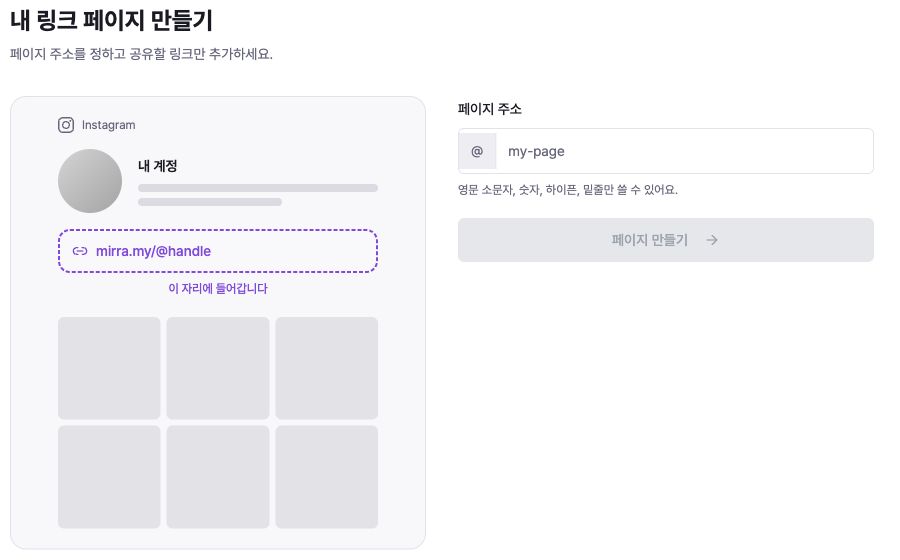
Open ‘내 링크 페이지’ (My Link Page) under Attract Customers. If there is no page yet, setup opens directly; if you already run several, choose ‘페이지 추가’ (Add page).
In ‘페이지 주소’ (Page address), enter a 3–30 character handle using lowercase English letters, numbers, hyphens, or underscores. When ‘사용할 수 있어요’ (Available) appears, choose ‘페이지 만들기’ (Create page).
The address uses the form mirra.my/@handle. Used or reserved handles are unavailable, and the newly created page opens as a private draft.
2. Build the page with blocks
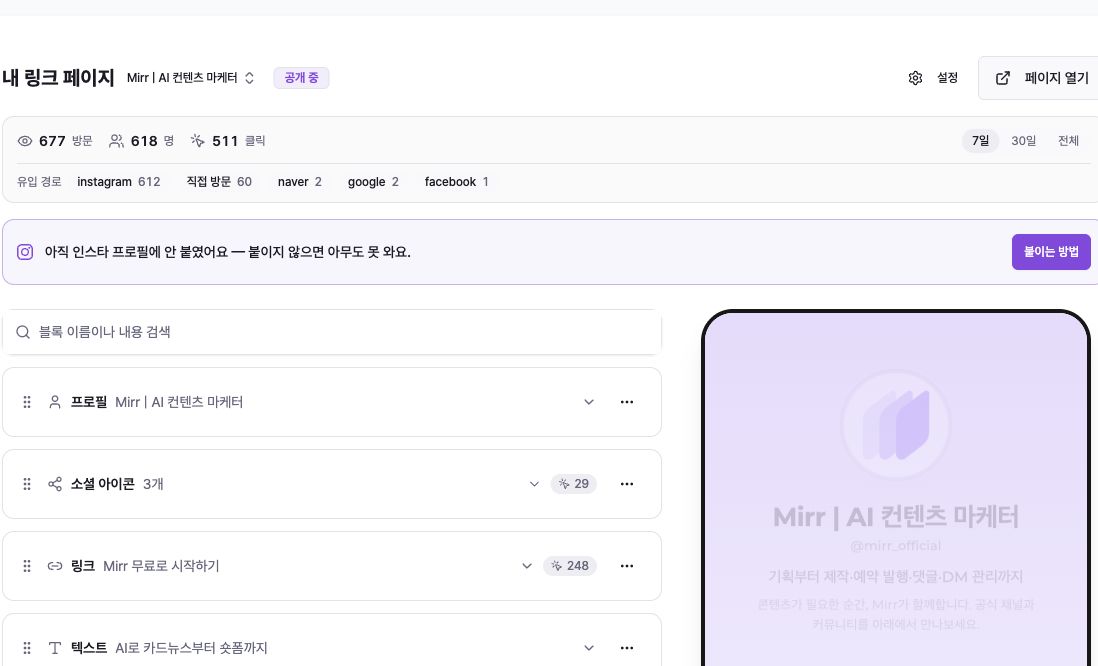
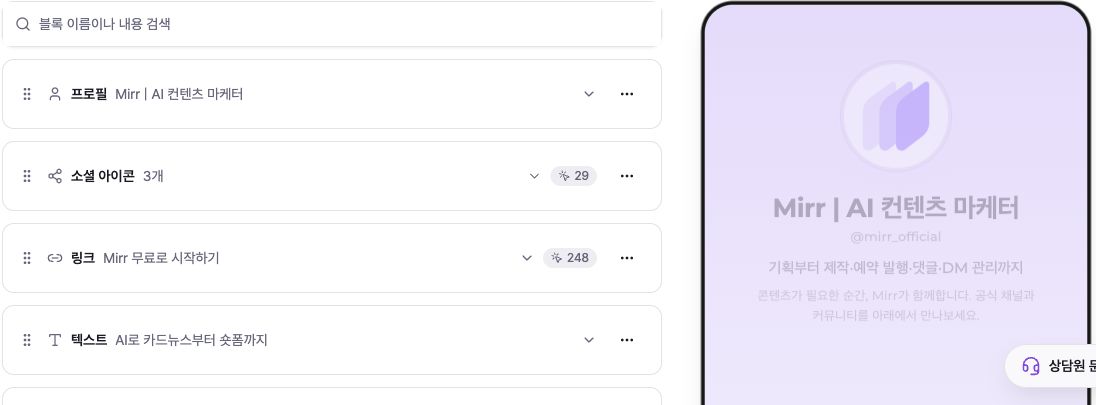
The editor shows blocks on the left and the visitor preview on the right. Under ‘블록 추가’ (Add block), you can add a link, social icons, direct contact, text, image grid, or video and music.
A Link needs an address beginning with http. Direct contact opens the visitor’s email or phone app and does not add details to your contact list. Supported media services play on the page; unsupported addresses appear as a regular button.
Drag the handle at the left to reorder blocks and open a block to edit it. Deletion uses a confirmation dialog and cannot be undone, so verify the target first.
3. Check the preview and automatic saving
The preview reflects your current input immediately. After you stop typing, the automatic-save state changes; wait for ‘저장됨’ (Saved) before closing the screen.
A Link with no address or Direct contact with no valid email or phone blocks publishing. Some completely empty blocks can be saved but remain hidden on the public page.
‘페이지 열기’ (Open page) opens the current public address in a new view. For a private page, use the editor preview first.
4. Refine the design
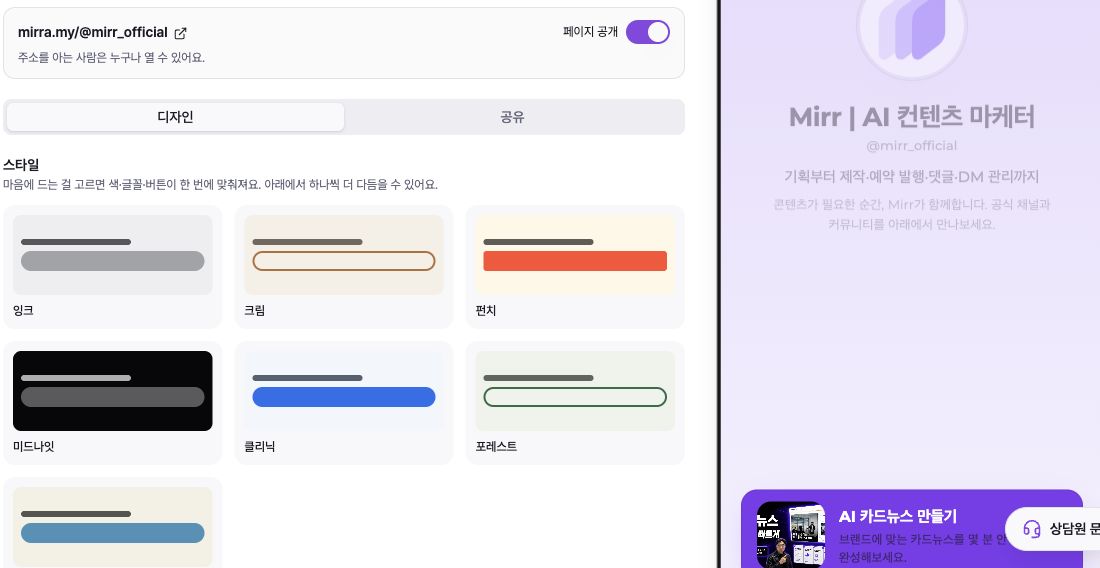
Open ‘설정’ (Settings), then the ‘디자인’ (Design) tab. Start with one of the looks shown as ‘잉크’, ‘크림’, ‘펀치’, ‘미드나잇’, ‘클리닉’, ‘포레스트’, or ‘내 브랜드’ (My brand).
Under ‘직접 다듬기’ (Fine-tune), adjust the font, card finish, button shape and fill, background, text and accent colors, and background image. Check contrast in the preview on the right.
Design changes also save automatically. Mirr branding is always shown at the bottom on free plans; paid plans can turn it on or off in settings.
5. Publish and put the address where visitors can find it
On a private draft, choosing ‘공개하기’ (Publish) saves the current blocks and makes the page public. Invalid link or contact blocks must be fixed first; Mirr asks whether to continue if empty blocks will be hidden.
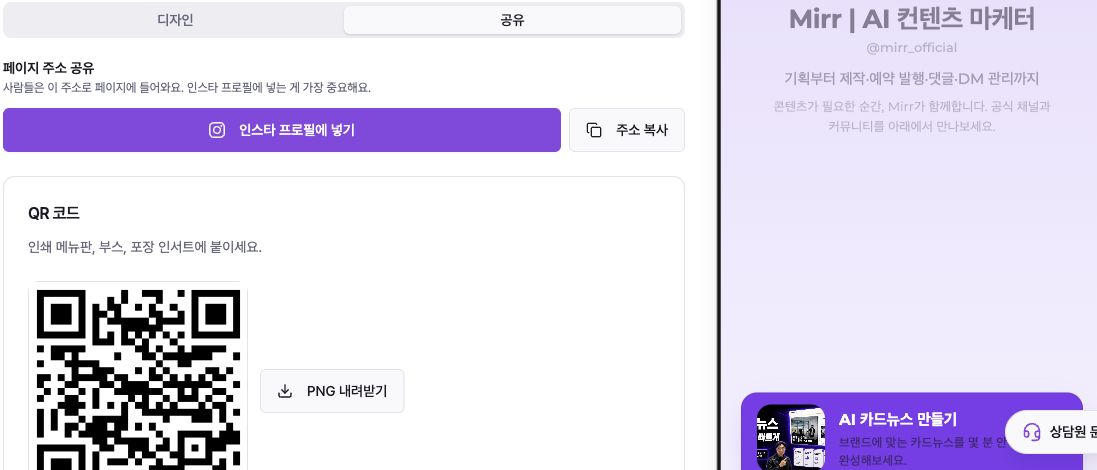
On the ‘공유’ (Share) tab, use ‘인스타 프로필에 넣기’ (Add to Instagram profile), ‘주소 복사’ (Copy address), or ‘PNG 내려받기’ (Download PNG) for the QR code. Verify that each profile or printed item uses the actual public address.
Turning off search visibility does not make the page private. Anyone with the address can still open it, and existing search results can take time to disappear. To close access, turn off ‘페이지 공개’ (Page public).
6. Manage the address and performance
At the top of the editor, compare visits, visitors, clicks, and major referral sources across ‘7일’ (7 days), ‘30일’ (30 days), and ‘전체’ (All). Each block also shows clicks. Visitor and referral details may be absent in All because of the historical data format.
Changing the page address immediately stops the previous address from opening. Prepare to replace it in social profiles, printed material, and QR codes before confirming the change.
With multiple pages, the list compares public state and performance. Deleting a page uses a confirmation dialog and is irreversible.
Troubleshooting
If ‘페이지 만들기’ (Create page) is disabled, check the handle length and permitted characters. A used or reserved handle requires another choice; also check your plan’s page limit.
If a published block is missing, check whether it is an empty text, social, or image block. Links require a destination; Direct contact requires a valid email or phone number.
If a recent edit is missing, check the automatic-save state. When it says ‘저장 실패 — 재시도 중’ (Save failed — retrying), keep the screen open until it changes to Saved.
Search visibility controls only the sitemap and crawler instruction. Turn off Page public to prevent outside access. After changing the address, update every shared location and generate a new QR code.