
Create and edit an AI carousel
Create a carousel from a topic, draft, or link, edit each slide, then download it or continue to scheduling.
Open this feature1. Choose how to start
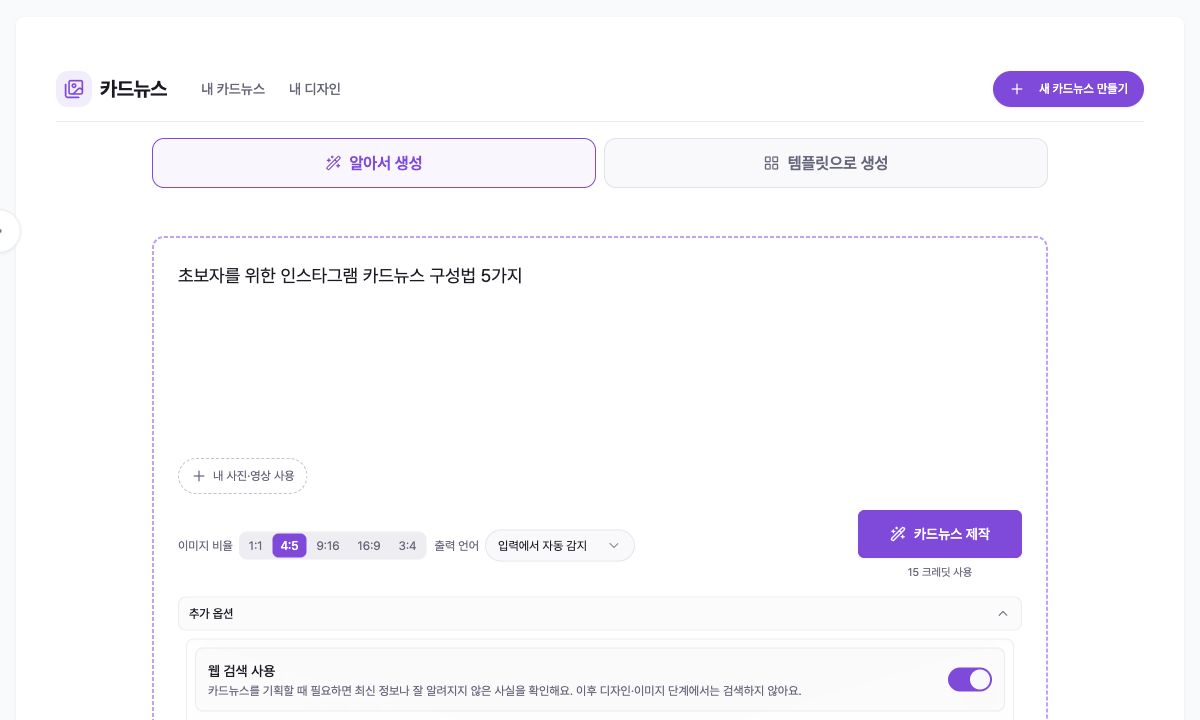
Open Content creation → Carousel creation in the left menu and select ‘새 카드뉴스 만들기’ (Create new carousel). ‘알아서 생성’ (Auto create) builds the content and design from your topic or draft, while ‘템플릿으로 생성’ (Create from template) starts with a design you choose.
Use ‘내 카드뉴스’ (My carousels) to reopen past results and ‘내 디자인’ (My designs) to manage saved templates. Generation, AI edits, AI images, and captions may use the credits shown on the action button, so review the displayed cost before running them.

2. Build a draft with Auto create
Enter a topic, finished draft, or blog, news, store, or YouTube link in the large field. You can paste a public link by itself or use ‘링크에서 가져오기’ (Import from link). Add media that should appear in the result with ‘내 사진·영상 사용’ (Use my photos/videos); AI assigns them to suitable slides.
Choose 1:1, 4:5, 9:16, 16:9, or 3:4 under ‘이미지 비율’ (Image ratio). ‘출력 언어’ (Output language) detects the input language by default, and you can select another language when needed.
Under ‘추가 옵션’ (More options), configure web search, review the outline before creation, and slide count. The screen observed for this guide showed a base cost of 15 credits; always rely on the price displayed on your action button before running it.
3. Create from a template
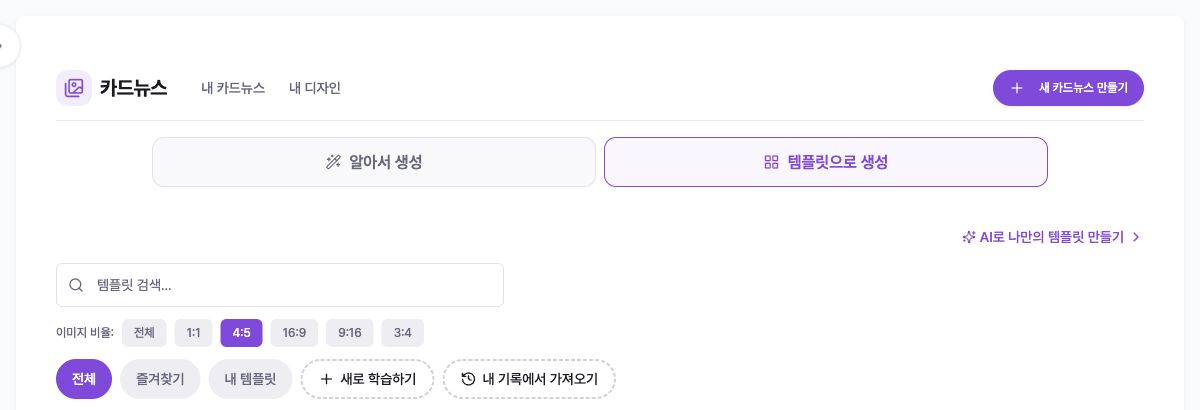
Select ‘템플릿으로 생성’ (Create from template) to reveal template search and image-ratio filters. Narrow the list with ‘전체’ (All), ‘즐겨찾기’ (Favorites), and ‘내 템플릿’ (My templates), compare previews, and match the ratio to your intended channel.
If no design fits, use ‘AI로 나만의 템플릿 만들기’ (Create my template with AI) or ‘새로 학습하기’ (Train a new one). ‘내 기록에서 가져오기’ (Import from my history) turns a past carousel design into a reusable template. Template generation or variation may show a separate credit cost.
4. Review the outline and generation progress
When ‘만들기 전에 기획 검토하기’ (Review outline before creating) is enabled, AI first shows the cover, body, and call-to-action slide plan. Review the copy and order, use ‘AI로 다시쓰기’ (Rewrite with AI) if needed, and check the credits on the approval button.
When outline review is off, planning and slide generation continue in sequence. Do not press the create button repeatedly; wait for completion or an explicit failure, and reopen the record from ‘내 카드뉴스’ (My carousels) if you leave the page.
5. Review and refine the full result
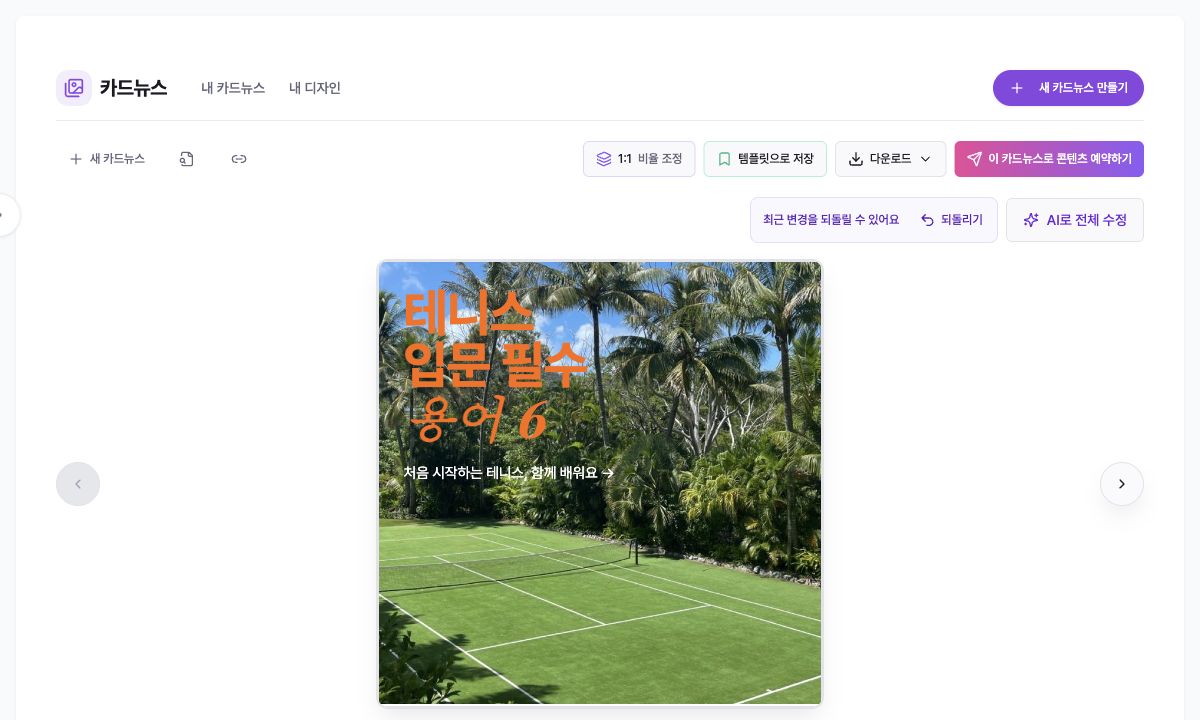
The result toolbar includes ‘비율 조정’ (Adjust ratio), ‘템플릿으로 저장’ (Save as template), ‘다운로드’ (Download), ‘이 카드뉴스로 콘텐츠 예약하기’ (Schedule content with this carousel), and ‘AI로 전체 수정’ (Edit all with AI). Check every slide for clipped text, factual errors, mismatched images, and duplicate endings.
‘AI로 전체 수정’ (Edit all with AI) can change content or design across several slides. Specify the slide range and exact change, and use ‘되돌리기’ (Undo) for recent changes.
Each slide also has Download, Duplicate slide, and Delete slide actions. Confirm the slide number and content before deletion; duplicate an existing slide when you need the same structure.
6. Edit an individual slide
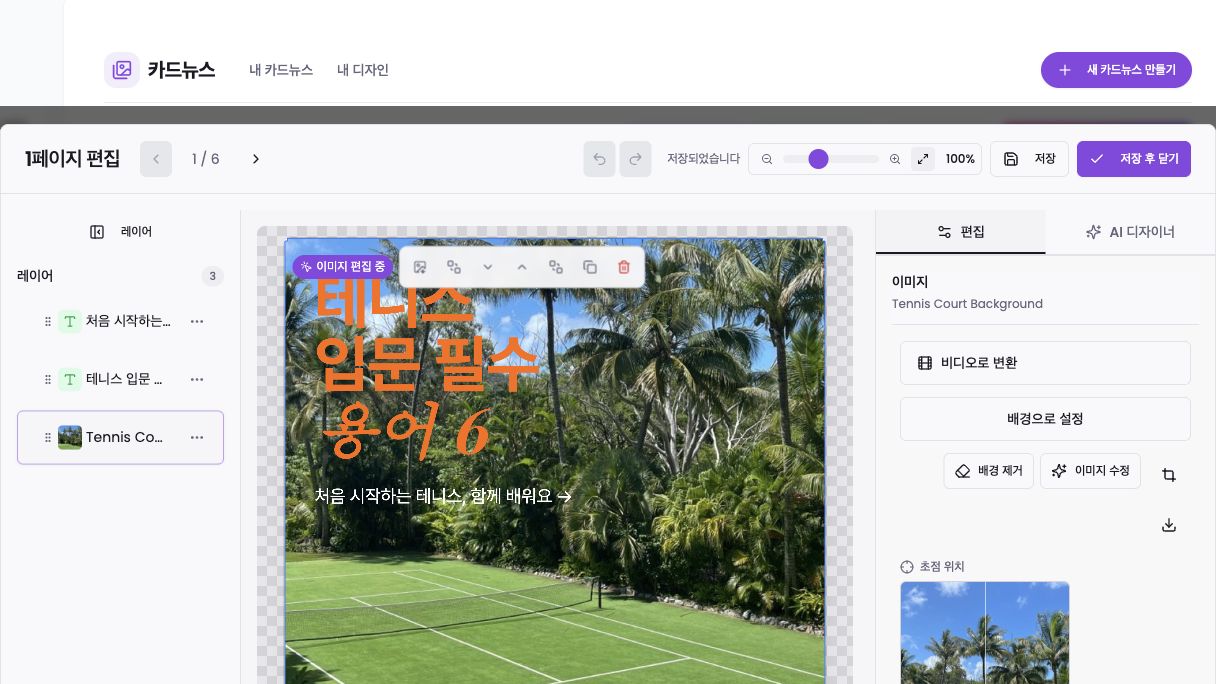
Select ‘클릭하여 편집’ (Click to edit) on the preview. In ‘레이어’ (Layers), choose and reorder text, image, logo, and video elements; use ‘요소 추가’ (Add element) to insert new ones. On the canvas you can move, duplicate, delete, and change stacking order.
The right ‘편집’ (Edit) tab changes with the selected element. Image controls include set as background, remove background, AI image edit, crop, focal point, zoom, and replace. Sources include ‘상업 사용 가능’ (Commercial-use stock), ‘인터넷 검색’ (Web search), ‘AI 생성’ (AI generation), and ‘내 에셋’ (My assets).
Use ‘AI 디자이너’ (AI Designer) for natural-language layout or style changes. After manual edits, confirm ‘저장되었습니다’ (Saved) at the top and select ‘저장 후 닫기’ (Save and close). Verify third-party image rights with the source.
7. Download, reuse, or schedule
The ‘다운로드’ (Download) menu exports the full result as ZIP or PDF, while a slide-level Download saves only the current slide. A slide containing video may appear as a video file in the archive, so inspect file extensions after extracting it.
Use ‘템플릿으로 저장’ (Save as template) to reuse the design. ‘이 카드뉴스로 콘텐츠 예약하기’ (Schedule content with this carousel) only opens the scheduling flow; recheck the connected account, copy, media, and scheduled time there. Completing or downloading a carousel does not publish it to social media.
Troubleshooting
If ‘카드뉴스 제작’ (Create carousel) is disabled, confirm the input is not empty and any link import or file upload has finished.
If the intended image was not used, confirm the upload under ‘내 사진·영상 사용’ (Use my photos/videos), then replace the image in the individual slide editor after generation.
If copy or slide count differs from your intent, enable outline review and revise the plan before approval. Also check that the amount of content fits a manually chosen slide count.
If edits do not appear, confirm the Saved state in the page editor, select Save and close, and reopen that slide.
If a download fails, wait for generation, saving, and AI edits to finish, then retry. Also check whether the browser allows downloads from the site.