
Turn one link into a carousel, video, blog, or post
Import text and images from a public URL and continue in the right content editor.
Open this featureBefore you start
Prepare a public page that opens without signing in. You may omit https://, but enter the URL by itself.
Private posts, pages that require sign-in or age verification, and sites that block automated reading may not work.
To create a social post with ‘콘텐츠 만들기’ (Create content), connect a social account to Mirr first. Carousels, videos, and blogs continue directly to their editors after import.
1. Import the link
Open ‘제작’ or ‘AI로 콘텐츠 제작’ (Create / Create with AI) in the left menu, then choose ‘링크로 콘텐츠 만들기’ (Create content from a link). The page has the same title.
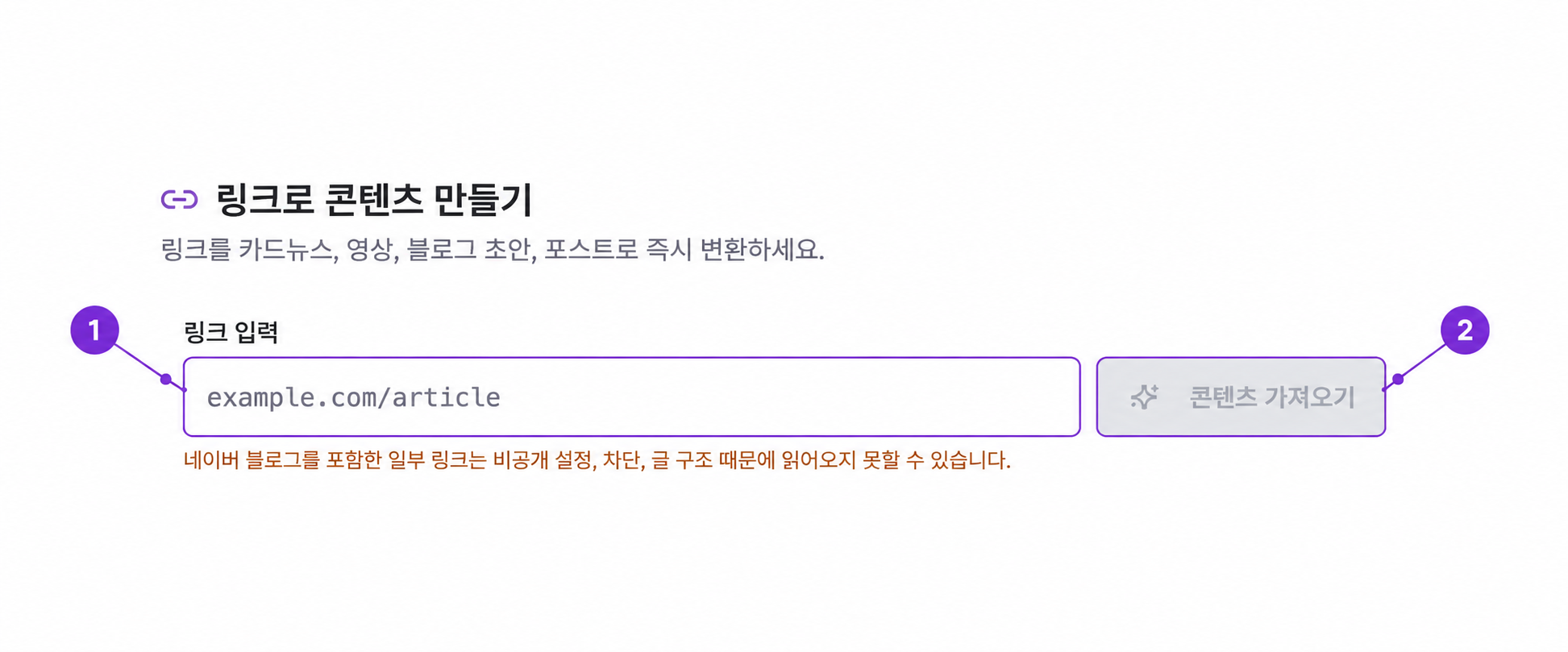
Paste one public URL into ‘링크 입력’ (Link input). When the format is valid, ‘콘텐츠 가져오기’ (Import content) becomes available; select it or press Enter.
Wait while the button reads ‘데이터 수집 중’ (Collecting data). The source title, body, and discovered images appear when import finishes.
If the field is empty or the value is not recognized as a public web address, Import content stays disabled. Enter one URL without surrounding text or extra lines.
2. Review imported text and media
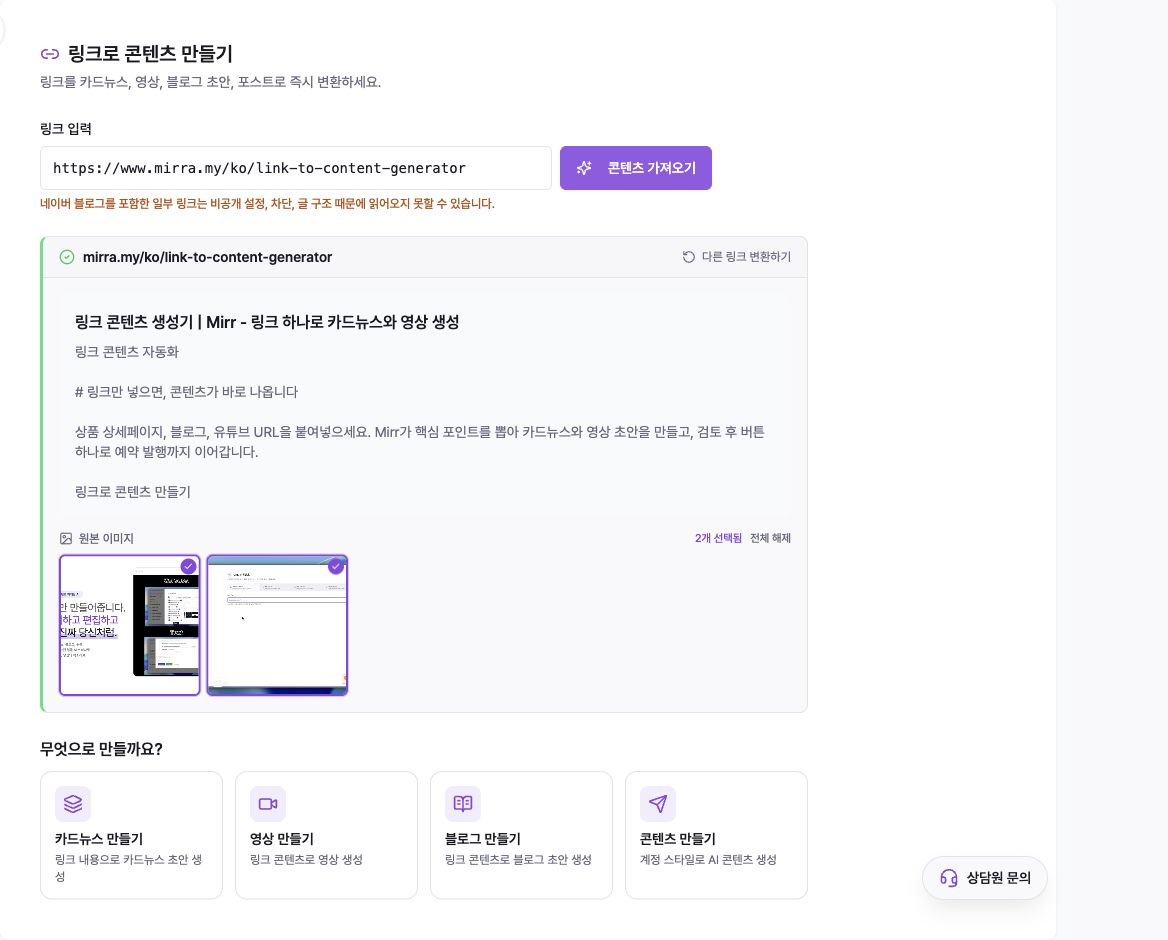
Check the source domain, title, and body in the green result panel. If it imported only navigation text or too little content, use ‘다른 링크 변환하기’ (Convert another link) and try a more direct public page.
‘원본 이미지’ (Source media) shows images and videos that can continue to the editor. All usable media starts selected.
A purple border and check mark mean selected. Select a thumbnail to toggle it, or use ‘전체 선택’ / ‘전체 해제’ (Select all / Clear all).
Unavailable images are listed separately and are not passed to the next editor.
3. Choose the output
Under ‘무엇으로 만들까요?’ (What would you like to make?), choose the format that matches your goal.
‘카드뉴스 만들기’ (Create carousel) passes the title, body, and selected source media to the carousel editor.
‘영상 만들기’ (Create video) passes the title, body, and selected source media to the video editor.
‘블로그 만들기’ (Create blog) passes the title, body, source URL, and selected images to the blog editor.
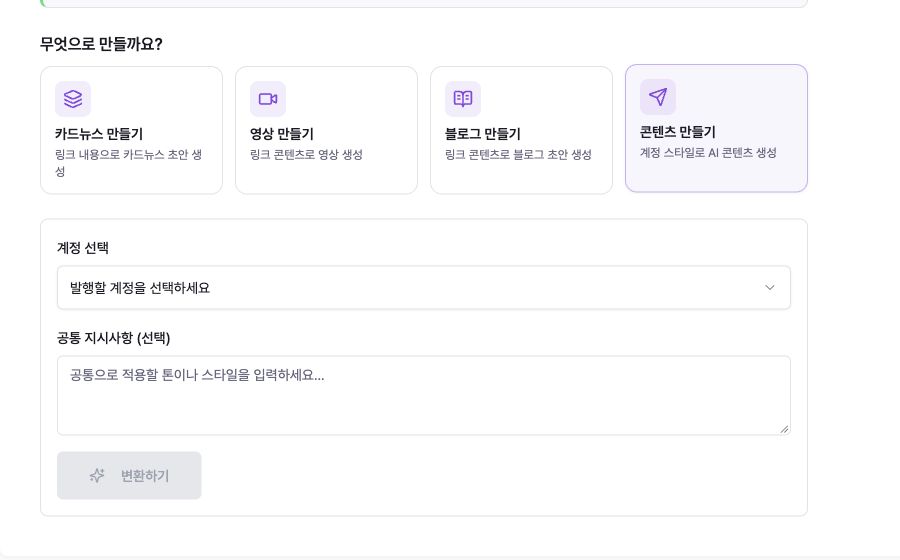
‘콘텐츠 만들기’ (Create content) asks for an account and optional instructions, then creates a social-post draft on this page.
Carousel, video, and blog cards open their dedicated editors immediately. Refine the imported draft and follow that editor’s preview and completion steps.
4. Create a social-post draft
Choose ‘콘텐츠 만들기’ (Create content) to open account and instruction fields.
Select the connected account that should guide the post. ‘변환하기’ (Convert) remains disabled until an account is selected.
‘공통 지시사항’ (Shared instructions) is optional. Add the tone, length, or key message, then select Convert.
Review and edit the generated copy and media in the post editor. The source URL is appended to the end of the draft.
After review, choose Save draft, Schedule post, or Publish now in the post editor.
Importing a link does not save or publish anything. Convert creates an editable draft; publishing happens only from the post editor.
Troubleshooting
If Import content does not enable, remove any sentence or line break around the URL. Use one address such as example.com/article or https://example.com/article.
If Mirr cannot read the link, confirm that it opens while signed out. Privacy, crawler blocking, or page structure can prevent import; Naver Blog posts can also fail depending on their settings. Try another public article or product page with the same information.
If only part of the body or media appears, review exactly what was imported. Lazy-loaded, sign-in-only, or embedded content may be incomplete, and media marked unavailable cannot be selected.
If Convert is disabled under Create content, select a connected social account first. Shared instructions may stay empty.
To start with another URL, select ‘다른 링크 변환하기’ (Convert another link) in the result panel.